


📅 Updated: June 7, 2026 (Originally published: February 5, 2026)
NGINX’s built-in autoindex module generates directory listings that look like they belong in the 1990s. Plain text, no styling, no sorting controls, and no way to customize the appearance. If you serve files for download — software packages, documentation, media archives, or shared project assets — you need NGINX FancyIndex.
The NGINX FancyIndex module (ngx_http_fancyindex_module) replaces autoindex with beautiful, fully customizable directory listings. It adds sortable columns, human-readable file sizes, custom headers and footers, CSS theming, and regex-based file filtering. In this comprehensive guide, you will learn how to install, configure, and customize NGINX FancyIndex to create professional directory listings on your server.
NGINX FancyIndex vs. Autoindex: Why Switch?
NGINX ships with the autoindex module for directory listings. However, it offers only four configuration directives: autoindex, autoindex_format, autoindex_localtime, and autoindex_exact_size. That is it — no custom styling, no clickable sort headers, and no file filtering.
In contrast, NGINX FancyIndex provides 15 directives that give you complete control over directory listing appearance and behavior:
| Feature | autoindex | FancyIndex |
|---|---|---|
| Sortable columns | No | Yes (clickable headers) |
| Custom CSS styling | No | Yes (fancyindex_css_href) |
| Custom headers/footers | No | Yes (local files or subrequests) |
| Hide specific files | No | Yes (regex patterns) |
| Hide dotfiles | No | Yes (fancyindex_show_dotfiles) |
| Hide symlinks | No | Yes (fancyindex_hide_symlinks) |
| Directories-first sorting | No | Yes (fancyindex_directories_first) |
| Case-insensitive sorting | No | Yes (fancyindex_case_sensitive) |
| Custom time format | No | Yes (fancyindex_time_format) |
| Hide parent directory link | No | Yes (fancyindex_hide_parent_dir) |
If you need anything beyond a bare-bones file list, NGINX FancyIndex is the clear upgrade.
How NGINX FancyIndex Works
When a request arrives for a directory path (ending with /), NGINX FancyIndex intercepts it and generates an HTML table listing all files and subdirectories. The module reads the directory contents from the filesystem, then collects file metadata (name, size, modification time). After that, it sorts entries according to your configuration and renders a styled HTML response.
The generated HTML includes:
- A
<table>with clickable column headers for File Name, File Size, and Date - Proper HTML entity escaping for filenames (preventing XSS attacks)
- URI-encoded links for files with special characters
- Optional custom header and footer sections
- An optional external CSS stylesheet link
Users can sort the listing interactively by clicking column headers, which appends URL parameters like ?C=S&O=D (sort by Size, Descending order).
Installing NGINX FancyIndex
The easiest way to install NGINX FancyIndex is through the GetPageSpeed repository, which provides pre-built packages for RHEL-based distributions.
RHEL, CentOS, AlmaLinux, Rocky Linux 8+, Fedora, Amazon Linux 2023+
sudo dnf install https://extras.getpagespeed.com/release-latest.rpm
sudo dnf install nginx-module-fancyindex
CentOS/RHEL 7 and Amazon Linux 2
sudo yum install https://extras.getpagespeed.com/release-latest.rpm
sudo yum install nginx-module-fancyindex
Loading the Module
After installation, add the load_module directive at the top of your /etc/nginx/nginx.conf file (before the events block):
load_module modules/ngx_http_fancyindex_module.so;
Verify the configuration is valid:
sudo nginx -t
You should see:
nginx: the configuration file /etc/nginx/nginx.conf syntax is ok
nginx: configuration file /etc/nginx/nginx.conf test is successful
Then reload NGINX to activate the module:
sudo systemctl reload nginx
Ubuntu and Debian installation of FancyIndex NGINX module
Simply set up our APT repository and then run:
sudo apt-get update
sudo apt-get install nginx-module-fancyindex
The module is automatically enabled.
Basic NGINX FancyIndex Configuration
The simplest NGINX FancyIndex configuration enables directory listings with human-readable file sizes:
location /downloads/ {
    fancyindex on;
    fancyindex_exact_size off;
}
This replaces the autoindex on directive you may already have. The directory listing now displays a styled HTML table with sortable columns and file sizes shown as “5.0 MiB” instead of raw byte counts like “5242880”.
Complete NGINX FancyIndex Directive Reference
NGINX FancyIndex provides 15 directives, all available in http, server, and location contexts. Here is a detailed reference for every directive.
fancyindex
Syntax: fancyindex on | off;
Default: off
Enables or disables the FancyIndex directory listing for the current context. When enabled, it replaces NGINX’s built-in autoindex module.
fancyindex_default_sort
Syntax: fancyindex_default_sort name | size | date | name_desc | size_desc | date_desc;
Default: name
Sets the default sort criterion for directory listings. The _desc variants sort in descending order. Users can override this by clicking column headers in the browser, which appends ?C=N&O=A (Name, Ascending) or similar parameters to the URL.
fancyindex_case_sensitive
Syntax: fancyindex_case_sensitive on | off;
Default: on
Controls whether filename sorting is case-sensitive. When on (the default), uppercase letters sort before lowercase (e.g., “Zebra” appears before “apple”). When off, sorting ignores case differences, which produces more intuitive alphabetical results for most users. This directive only affects name-based sorting and has no effect when sorting by size or date.
fancyindex_directories_first
Syntax: fancyindex_directories_first on | off;
Default: on
When enabled, directories are grouped together and listed before files, regardless of the sort criterion. This is the default behavior and matches what most users expect from a file manager.
fancyindex_exact_size
Syntax: fancyindex_exact_size on | off;
Default: on
Controls file size display format. When on, sizes are displayed in exact bytes (e.g., 5242880). When off, sizes are shown in human-readable format (e.g., 5.0 MiB). For most use cases, setting this to off produces a cleaner listing.
fancyindex_localtime
Syntax: fancyindex_localtime on | off;
Default: off
When off, file modification times are displayed in GMT/UTC. When on, times use the server’s local timezone. Enable this if your users are primarily in the same timezone as the server.
fancyindex_time_format
Syntax: fancyindex_time_format string;
Default: "%Y-%b-%d %H:%M"
Custom format string for file timestamps. Supports standard strftime specifiers, but uses locale-independent English month and day names. Common format specifiers include:
| Specifier | Output | Example |
|---|---|---|
%Y |
Four-digit year | 2026 |
%m |
Two-digit month | 02 |
%b |
Abbreviated month | Feb |
%B |
Full month name | February |
%d |
Day of month (01-31) | 06 |
%H |
Hour (00-23) | 14 |
%M |
Minute (00-59) | 30 |
%S |
Second (00-59) | 45 |
Example using ISO-style dates:
fancyindex_time_format "%Y-%m-%d %H:%M";
fancyindex_show_path
Syntax: fancyindex_show_path on | off;
Default: on
Controls whether the directory path is displayed as an <h1> heading above the file listing. Disable this when using a custom header that already shows the path.
fancyindex_show_dotfiles
Syntax: fancyindex_show_dotfiles on | off;
Default: off
Controls whether files and directories starting with a dot (.) are visible in the listing. Hidden files like .htaccess, .git, and .env are excluded by default for security reasons. Only enable this if you specifically need to expose hidden files.
fancyindex_hide_parent_dir
Syntax: fancyindex_hide_parent_dir on | off;
Default: off
When enabled, the “Parent directory/” link at the top of the listing is hidden. This is useful for root-level download directories where navigating to the parent is unnecessary or undesirable.
fancyindex_hide_symlinks
Syntax: fancyindex_hide_symlinks on | off;
Default: off
When enabled, symbolic links are hidden from directory listings. This can improve security by preventing users from discovering filesystem structure through symlink targets.
fancyindex_ignore
Syntax: fancyindex_ignore pattern ...;
Default: none
Specifies one or more patterns for files to exclude from the listing. When NGINX is compiled with PCRE (which is the standard for GetPageSpeed packages), patterns are treated as regular expressions.
Without PCRE, patterns are matched as exact filenames instead.
# Hide version control directories and backup files
fancyindex_ignore ".git" ".svn" "~$" ".bak$";
Important: Since patterns are regular expressions when PCRE is available, use proper regex syntax. For example, .bin$ matches files ending in .bin, while *.bin would cause a configuration error because * is not valid at the start of a regex.
fancyindex_css_href
Syntax: fancyindex_css_href uri;
Default: ""
Specifies a URI for a custom CSS stylesheet that is added as a <link> tag in the page header. The default built-in styles remain in place, so your custom CSS can selectively override them.
fancyindex_css_href "/assets/fancyindex.css";
The default styles use these CSS selectors that you can customize:
#list— the main table elementthead th— table header cells.link— filename column cells.size— file size column cells.date— date column cellstr:nth-child(even)— alternating row colors
fancyindex_header
Syntax: fancyindex_header path [local];
Default: ""
Inserts custom HTML content before the directory listing. The path argument specifies either a URI (for subrequest mode) or a filesystem path (for local mode).
Subrequest mode (default): The path is treated as a URI, and NGINX fetches it via an internal subrequest. This allows dynamic content generation through other NGINX modules or backend services:
fancyindex_header /includes/header.html;
Local mode: The file is read at configuration time and embedded directly. Use an absolute filesystem path:
fancyindex_header /etc/nginx/fancyindex/header.html local;
fancyindex_footer
Syntax: fancyindex_footer path [local];
Default: ""
Inserts custom HTML content after the directory listing. Works identically to fancyindex_header with both subrequest and local modes.
fancyindex_footer /includes/footer.html;
Filename Truncation
In previous versions (v0.5.2 and earlier), NGINX FancyIndex used a fancyindex_name_length directive to control filename truncation at a fixed character count. Starting with v0.6.0, this directive has been removed in favor of CSS-based truncation.
The module now applies text-overflow and overflow: hidden CSS rules to the .link column. Long filenames are automatically truncated to fit the column width, and the full filename remains accessible via the link’s title attribute (visible on hover).
If you are upgrading from an older version and your configuration includes fancyindex_name_length, remove it to avoid an “unknown directive” error. You can control truncation behavior through your custom CSS instead:
/* Allow longer filenames before truncation */
.link {
    max-width: 600px;
    white-space: nowrap;
    text-overflow: ellipsis;
    overflow: hidden;
}
Practical NGINX FancyIndex Configuration Examples
File Download Server
This NGINX FancyIndex configuration is ideal for a public file download server with clean organization:
server {
    listen 80;
    server_name files.example.com;
    root /var/www/files;

    location / {
        fancyindex on;
        fancyindex_exact_size off;
        fancyindex_localtime on;
        fancyindex_default_sort name;
        fancyindex_directories_first on;
        fancyindex_case_sensitive off;
        fancyindex_hide_symlinks on;
        fancyindex_time_format "%Y-%m-%d %H:%M";
        fancyindex_ignore ".git" ".svn" ".DS_Store" "Thumbs.db";
    }
}
RPM/Package Repository
For hosting software packages, sort by date to show the latest versions first:
location /packages/ {
    fancyindex on;
    fancyindex_exact_size on;
    fancyindex_default_sort date_desc;
    fancyindex_directories_first on;
    fancyindex_hide_parent_dir on;
    fancyindex_ignore "repodata" ".sqlite" ".xml.gz";
}
Custom-Themed Directory Listing
For a branded download page with custom header, footer, and CSS:
location /downloads/ {
    fancyindex on;
    fancyindex_exact_size off;
    fancyindex_localtime on;
    fancyindex_show_path off;
    fancyindex_header /includes/download-header.html;
    fancyindex_footer /includes/download-footer.html;
    fancyindex_css_href "/assets/fancyindex-theme.css";
    fancyindex_ignore ".git" ".svn";
}
The header file (/includes/download-header.html) could contain:
<div style="max-width: 960px; margin: 0 auto; padding: 20px;">
  <h1>Download Center</h1>
  <p>Browse and download files from our repository.</p>
</div>
Creating a Custom CSS Theme for NGINX FancyIndex
The default NGINX FancyIndex theme is functional but plain. However, you can create a modern-looking directory listing with a custom CSS file. Here is a starting point:
body {
    max-width: 960px;
    margin: 0 auto;
    padding: 20px;
    font-family: -apple-system, BlinkMacSystemFont, "Segoe UI", Roboto, sans-serif;
    background: #fafafa;
}

h1 {
    color: #333;
    border-bottom: 2px solid #e0e0e0;
    padding-bottom: 10px;
}

#list {
    border: none;
    border-collapse: collapse;
    width: 100%;
}

#list thead th {
    background: #f5f5f5;
    padding: 12px 16px;
    border-bottom: 2px solid #ddd;
    font-size: 14px;
}

#list tbody td {
    padding: 10px 16px;
    border-bottom: 1px solid #eee;
}

#list tbody tr:hover {
    background: #f0f7ff;
}

#list a {
    color: #0366d6;
    text-decoration: none;
}

#list a:hover {
    text-decoration: underline;
}
Save this as a static file within your web root (e.g., /assets/fancyindex-theme.css) and reference it with fancyindex_css_href.
Theme Gallery
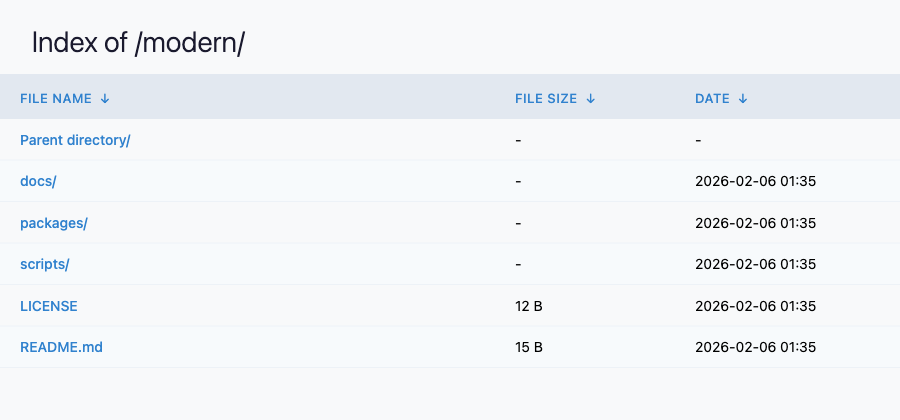
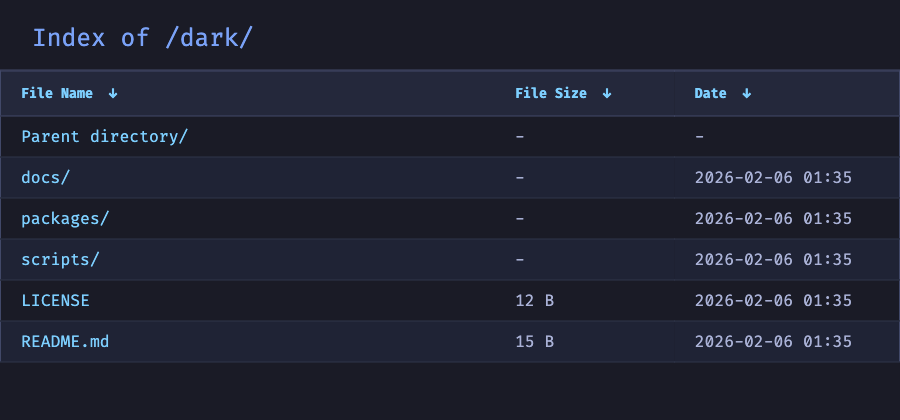
Here are three example themes to inspire your own NGINX FancyIndex customization. Each theme uses only fancyindex_css_href — no custom headers or footers required.
Modern Light Theme — Clean typography with uppercase headers and subtle hover effects:

Dark Theme (Tokyo Night) — A developer-friendly dark color scheme with monospace fonts:
GitHub-Style Theme — Mimics the familiar GitHub repository file browser:
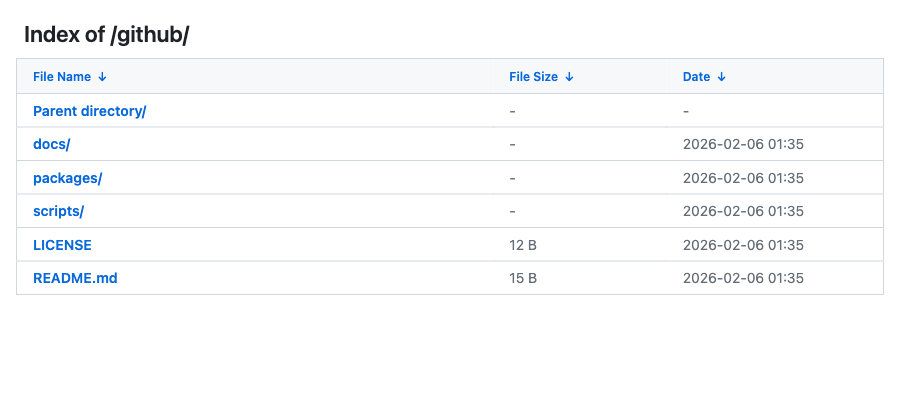
All three themes above use the exact same NGINX FancyIndex configuration — the only difference is the CSS file referenced by fancyindex_css_href. This demonstrates how a single directive can completely transform the look of your directory listings.
NGINX FancyIndex Security Considerations
Directory listings expose your server’s file structure to visitors. Therefore, follow these security best practices when using NGINX FancyIndex:
Keep dotfiles hidden. The default fancyindex_show_dotfiles off setting prevents exposure of configuration files like .env, .htaccess, and .git directories. Do not enable this directive unless you have a specific reason.
Hide symbolic links when possible. Symlinks can reveal filesystem paths and internal server structure. Use fancyindex_hide_symlinks on unless your directory listing specifically requires symlink visibility.
Filter sensitive files. Use fancyindex_ignore to exclude files that should not be visible:
fancyindex_ignore ".env" ".htpasswd" ".key$" ".pem$" ".log$";
Restrict access. Combine FancyIndex with NGINX access control directives to limit who can browse directories:
location /internal-files/ {
    fancyindex on;
    fancyindex_exact_size off;
    allow 10.0.0.0/8;
    deny all;
}
Add security headers. Consider using the NGINX security headers module to add Content-Security-Policy and X-Frame-Options headers to your directory listings. This prevents clickjacking and injection attacks.
You can always validate your NGINX configuration for security issues using the free NGINX config checker.
Troubleshooting NGINX FancyIndex
“unknown directive fancyindex”
This error means the module is not loaded. Verify that you have the load_module directive at the top of your nginx.conf:
load_module modules/ngx_http_fancyindex_module.so;
The load_module directive must appear before the events block.
“unknown directive fancyindex_name_length”
If you see this error after upgrading to NGINX FancyIndex v0.6.0 or later, the fancyindex_name_length directive has been removed. Simply delete the line from your configuration. Long filenames are now truncated automatically via CSS. See the Filename Truncation section above for details.
403 Forbidden Instead of Directory Listing
If you get a 403 error, check:
- File permissions: NGINX worker process (typically running as
nginxuser) must have read and execute permissions on the directory:
sudo chmod 755 /path/to/directory
sudo chmod 644 /path/to/directory/*
- No conflicting index directive: If an index directive points to a nonexistent file, NGINX returns 403 before FancyIndex can handle the request. Either create the index file or remove the
indexdirective for that location. - SELinux context: On RHEL-based systems, files must have the correct SELinux context:
sudo restorecon -Rv /path/to/directory
fancyindex_ignore Pattern Errors
If you see pcre2_compile() failed: quantifier does not follow a repeatable item, you are using glob syntax instead of regular expressions. FancyIndex patterns use PCRE regex:
# Wrong - glob syntax
fancyindex_ignore "*.log";

# Correct - regex syntax
fancyindex_ignore ".log$";
Custom Header/Footer Not Appearing
When using subrequest mode (the default), the header/footer path must be accessible as a URI within NGINX. Ensure the file exists within the web root and is served by a location block. For filesystem paths, use local mode with an absolute path:
fancyindex_header /etc/nginx/fancyindex/header.html local;
NGINX FancyIndex Performance Impact
NGINX FancyIndex has minimal performance overhead. The module reads directory contents at request time (just like autoindex), sorts entries in memory, and generates HTML output. For directories with thousands of files, sorting adds negligible latency compared to the filesystem I/O of reading directory entries.
For extremely large directories (10,000+ files), consider these optimizations:
- Splitting files into subdirectories to reduce listing size
- Using
fancyindex_ignoreto filter unnecessary files - Enabling
fancyindex_hide_symlinksto skiplstat()calls on symlinks
Version Notes
The GetPageSpeed repository packages NGINX FancyIndex v0.6.0, which includes all 15 directives documented above. Notable changes compared to the previous v0.5.2 release:
- Added
fancyindex_case_sensitive— enables case-insensitive filename sorting, which produces more intuitive directory listings for most users. - Removed
fancyindex_name_length— filename truncation is now handled automatically via CSS (text-overflowandoverflow: hiddenon the.linkcolumn). If your configuration usesfancyindex_name_length, remove it when upgrading to avoid an “unknown directive” error.
The upstream source code is available on GitHub.
Conclusion
The NGINX FancyIndex module transforms bare-bones directory listings into professional, user-friendly file browsers. With 15 configuration directives covering sorting, filtering, theming, and custom content injection, it provides everything you need for a polished download page — without requiring any backend application.
Moreover, NGINX FancyIndex integrates seamlessly with existing NGINX configurations. You can combine it with access control, security headers, and custom themes to create a complete file serving solution.
Install NGINX FancyIndex from the GetPageSpeed repository and start creating beautiful directory listings on your server today. The module source code is available on GitHub.
File-serving config slips. Continuous scanning catches the slip before someone else does. GetPageSpeed Amplify runs scheduled gixy scans across every host and ties findings to live NGINX runtime metrics. Drop-in compatible with the deprecated nginx-amplify-agent (EOL January 2026).