


📅 Updated: June 7, 2026 (Originally published: February 4, 2026)
The ngx_http_auth_totp module enables NGINX TOTP authentication directly at the web server level. It brings time-based one-time password (TOTP) two-factor authentication to your infrastructure. This module implements RFC 6238 TOTP and RFC 4226 HOTP algorithms. It provides an additional layer of security beyond traditional password authentication.
Why Use NGINX TOTP Authentication?
Traditional authentication methods rely on static passwords. These can be compromised through brute-force attacks, phishing, or credential stuffing. NGINX TOTP authentication requires users to provide a password that changes every 30 seconds. This password is generated by an authenticator app on their smartphone.
By implementing TOTP authentication at the NGINX level, you can:
- Protect sensitive administrative interfaces without modifying application code
- Add 2FA to legacy applications that don’t support modern authentication methods
- Secure VPN endpoints and Wi-Fi captive portals with industry-standard authentication
- Reduce attack surface by blocking unauthorized access before requests reach your application
The module works with popular authenticator apps. These include Google Authenticator, Microsoft Authenticator, and Authy. Any TOTP-compliant application will work.
Comparison with Other Authentication Methods
NGINX TOTP authentication offers several advantages over alternatives:
vs. HTTP Basic Auth: Basic authentication uses static passwords. TOTP adds a rotating second factor that changes every 30 seconds.
vs. Client Certificates: Certificate-based auth requires PKI infrastructure. TOTP only needs a smartphone app. Setup is much simpler.
vs. IP Whitelisting: IP restrictions break for remote workers. TOTP works from any location with the correct credentials.
vs. Application-Level 2FA: Many applications lack 2FA support. NGINX-level authentication protects any backend without code changes.
How NGINX TOTP Authentication Works
The module operates during the NGINX access phase. It intercepts requests to protected locations and demands HTTP Basic Authentication credentials. However, instead of validating a static password, it validates a TOTP code. This code is generated from a shared secret.
Here’s the authentication flow:
- A client requests a protected resource
- NGINX responds with HTTP 401 Unauthorized
- The response includes a
WWW-Authenticate: Basic realm="..."header - The client provides credentials via HTTP Basic Authentication
- The module extracts the username and TOTP code from the Authorization header
- Using the shared secret stored for that user, the module generates valid TOTP codes
- If the provided code matches, authentication succeeds
- A session cookie is set for subsequent requests
The session cookie mechanism is crucial. TOTP codes expire quickly. Without session tracking, users would need to enter a new code for every request. This would create a frustrating user experience.
Understanding TOTP Algorithm
TOTP extends the HMAC-based One-Time Password (HOTP) algorithm. It uses the current time as the counter value. The algorithm works as follows:
- Divide current UNIX timestamp by the time step (usually 30 seconds)
- Use this value as input to HMAC-SHA1 with the shared secret
- Truncate the result to produce a 6-digit code
This ensures both server and client generate matching codes. Clock synchronization is handled through the skew parameter.
Installation on RHEL-Based Distributions
The module is available as a pre-built package from the GetPageSpeed repository. It supports all RHEL-based distributions. This includes Rocky Linux, AlmaLinux, CentOS Stream, and Oracle Linux.
Enable the Repository
sudo dnf install https://extras.getpagespeed.com/release-latest.rpm
Install the Module
sudo dnf install nginx-module-auth-totp
Enable the Module
Add the following directive at the top of /etc/nginx/nginx.conf. Place it before the events block:
load_module modules/ngx_http_auth_totp_module.so;
Verify the configuration and reload NGINX:
sudo nginx -t && sudo systemctl reload nginx
Installation on Debian and Ubuntu
The module is also available for Debian-based distributions through the GetPageSpeed APT repository. This includes Debian, Ubuntu, and their derivatives.
Enable the Repository
Follow the repository setup instructions for your specific distribution. After enabling the repository, update the package index:
sudo apt-get update
Install the Module
sudo apt-get install nginx-module-auth-totp
The module is enabled automatically.
Verify the configuration and reload NGINX:
sudo nginx -t && sudo systemctl reload nginx
Configuration Directives Reference
The module provides nine configuration directives. These allow fine-tuning of NGINX TOTP authentication behavior.
auth_totp_realm
- Syntax:
auth_totp_realm <string> | off - Default:
off - Context: http, server, location, limit_except
This directive enables TOTP authentication for the context. It specifies the realm string displayed in the browser’s authentication dialog. Set to off to disable authentication inherited from a parent context.
location /admin {
    auth_totp_realm "Administration Panel";
    auth_totp_file /etc/nginx/totp-secrets.conf;
}
auth_totp_file
- Syntax:
auth_totp_file <filename> - Default: none (required when auth_totp_realm is enabled)
- Context: http, server, location, limit_except
This directive specifies the path to the secrets file. The file contains usernames and their TOTP shared secrets. The file format is:
# Comments start with hash
username1:raw_secret_bytes_here
username2:another_secret_here
Important: The secrets must be in raw format, not Base32-encoded.
auth_totp_length
- Syntax:
auth_totp_length <1-8> - Default:
6 - Context: http, server, location, limit_except
This directive specifies the number of digits in the TOTP code. Most authenticator apps use 6 digits by default. The module supports codes from 1 to 8 digits.
auth_totp_step
- Syntax:
auth_totp_step <interval> - Default:
30s - Context: http, server, location, limit_except
This directive specifies the time step for TOTP code generation. The standard value is 30 seconds. Some high-security applications may use 60-second steps.
auth_totp_skew
- Syntax:
auth_totp_skew <number> - Default:
1 - Context: http, server, location, limit_except
This directive specifies the number of time steps to accept. It accommodates clock drift between the server and client devices. A value of 1 accepts codes from the previous and current time windows.
auth_totp_start
- Syntax:
auth_totp_start <time> - Default:
0 - Context: http, server, location, limit_except
This directive specifies the UNIX epoch time from which to start counting. The default value of 0 corresponds to January 1, 1970.
auth_totp_cookie
- Syntax:
auth_totp_cookie <name> - Default:
totp - Context: http, server, location, limit_except
This directive specifies the name of the session cookie. The cookie is set after successful authentication.
auth_totp_expiry
- Syntax:
auth_totp_expiry <interval> - Default:
0s(session cookie) - Context: http, server, location, limit_except
This directive specifies the lifetime of the session cookie:
auth_totp_expiry 1h;   # 1 hour
auth_totp_expiry 24h;  # 24 hours
auth_totp_expiry 7d;   # 7 days
auth_totp_reuse
- Syntax:
auth_totp_reuse on | off - Default:
off - Context: http, server, location, limit_except
This directive controls whether the same TOTP code can be reused. When set to off, each code can only be used once. This prevents replay attacks. Set to on for a more lenient user experience.
Complete Configuration Example
Here’s a complete configuration that protects an administrative interface:
load_module modules/ngx_http_auth_totp_module.so;

events {
    worker_connections 1024;
}

http {
    include       mime.types;
    default_type  application/octet-stream;

    server {
        listen 80;
        server_name example.com;
        root /var/www/html;

        location / {
            index index.html;
        }

        # Admin area with NGINX TOTP authentication
        location /admin/ {
            auth_totp_realm "Admin Panel";
            auth_totp_file /etc/nginx/totp-secrets.conf;
            auth_totp_length 6;
            auth_totp_step 30s;
            auth_totp_skew 1;
            auth_totp_cookie "admin-session";
            auth_totp_expiry 1h;
            auth_totp_reuse on;

            proxy_pass http://127.0.0.1:8080/;
        }
    }
}
Creating the Secrets File
Generate secrets using Python and the pyotp library:
import pyotp
import base64

# Generate a new secret
secret_b32 = pyotp.random_base32()

# Decode to raw bytes for NGINX
secret_raw = base64.b32decode(secret_b32)

# Save to NGINX secrets file
with open('/etc/nginx/totp-secrets.conf', 'ab') as f:
    f.write(b'admin:' + secret_raw + b'n')

# Generate provisioning URI for QR code
totp = pyotp.TOTP(secret_b32)
uri = totp.provisioning_uri(name='admin', issuer_name='AdminPortal')
print(f"Base32 secret for authenticator app: {secret_b32}")
print(f"Provisioning URI: {uri}")
Secure the secrets file with proper permissions:
sudo chmod 640 /etc/nginx/totp-secrets.conf
sudo chown root:nginx /etc/nginx/totp-secrets.conf
Client-Side Setup: Configuring Your Authenticator App
After generating the TOTP secret on the server, users need to configure their authenticator app. This section explains how to set up two-factor authentication on mobile devices.
Supported Authenticator Apps
Any TOTP-compliant app works with NGINX TOTP authentication. Popular options include:
- Google Authenticator (iOS, Android) – Simple and reliable
- Microsoft Authenticator (iOS, Android) – Cloud backup support
- Authy (iOS, Android, Desktop) – Multi-device sync
- 1Password (iOS, Android, Desktop) – Integrated password manager
- Bitwarden (iOS, Android, Desktop) – Open-source password manager
- Apple Passwords (iOS 15+, macOS) – Built into iPhone Settings
Setup Method 1: QR Code Scanning
The easiest way to add a TOTP account is scanning a QR code. Generate one from the provisioning URI:
import pyotp
import qrcode

secret_b32 = "JBSWY3DPEHPK3PXP"  # Your Base32 secret
totp = pyotp.TOTP(secret_b32)
uri = totp.provisioning_uri(name='admin', issuer_name='MyServer')

# Generate QR code image
img = qrcode.make(uri)
img.save('totp-setup.png')
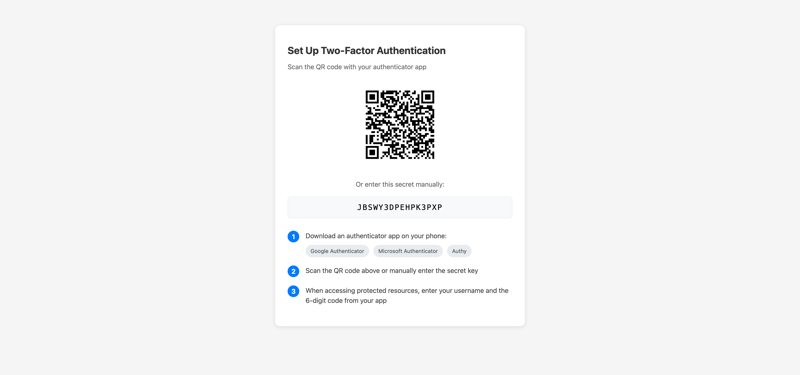
The following screenshot shows a typical TOTP setup page with a QR code that users can scan with their authenticator app:

Then in your authenticator app:
- Open the app and tap the + or Add button
- Select Scan QR code or Scan barcode
- Point your camera at the QR code
- The account appears automatically with the issuer name and username
Setup Method 2: Manual Entry
If QR scanning isn’t available, enter the secret manually:
- Open your authenticator app
- Tap Add then Enter key manually or Manual entry
- Enter the account name (e.g., “MyServer – admin”)
- Enter the Base32 secret key (e.g.,
JBSWY3DPEHPK3PXP) - Ensure Time-based is selected (not counter-based)
- Set Digits to 6 (unless configured differently in NGINX)
- Tap Add or Save
iPhone Passwords App Setup
iOS 15 and later includes built-in TOTP support in the Passwords app:
- Open Settings > Passwords
- Authenticate with Face ID or passcode
- Tap the + button to add a new password entry
- Enter the website URL and your username
- Tap Set Up Verification Code
- Choose Scan QR Code or Enter Setup Key
- If entering manually, paste the Base32 secret key
- The 6-digit code now appears in your password entry
When you visit the protected site, iOS can autofill both the username and current TOTP code.
Verifying the Setup
After adding the account to your authenticator app:
- The app displays a 6-digit code that refreshes every 30 seconds
- A countdown timer shows when the current code expires
- Test authentication by accessing a protected resource
- Enter your username and the current 6-digit code as the password
What Users See During Authentication
When accessing a TOTP-protected location, the browser displays a standard HTTP Basic Authentication dialog:
- The dialog shows the realm name (e.g., “Admin Panel”)
- Enter the username in the Username field
- Enter the current 6-digit TOTP code in the Password field
Important: There is no separate password. The TOTP code IS the password. You only need your username and the 6-digit code from your authenticator app.
- Click Sign In or OK
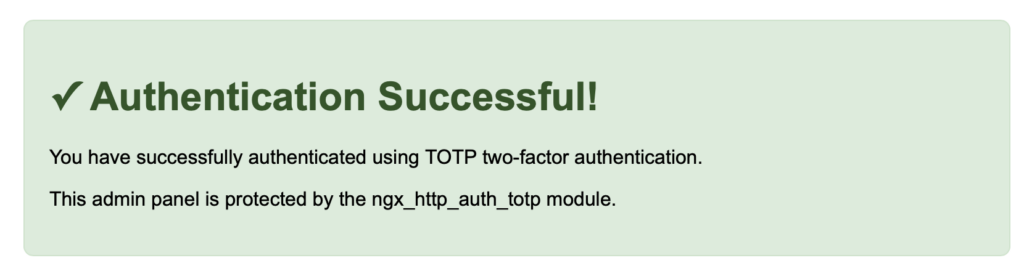
Upon successful authentication, the server responds with your protected content and sets a session cookie:

Subsequent requests within the session don’t require re-entering the TOTP code.
Mobile Browser Considerations
On mobile devices, the authentication flow works the same way:
- Navigate to the protected URL
- The browser shows an authentication prompt
- Switch to your authenticator app to get the current code
- Return to the browser and enter your credentials
- The session cookie maintains your authenticated state
Troubleshooting Client Setup
Code doesn’t work: Check that your device time is accurate. TOTP relies on synchronized clocks. Enable automatic time synchronization in your device settings.
Code expired: TOTP codes are valid for only 30 seconds. If you’re slow entering the code, wait for the next one and try again.
Wrong number of digits: Ensure your authenticator app is set to generate 6-digit codes, matching the auth_totp_length setting in NGINX.
Account shows wrong name: The issuer and account name are cosmetic. They help you identify the account but don’t affect authentication.
Testing TOTP Authentication
Verify the configuration syntax:
sudo nginx -t
Test without authentication. This should return 401:
curl -s -o /dev/null -w "%{http_code}" http://localhost/admin/
Generate a valid TOTP code and test:
python3 -c "import pyotp; print(pyotp.TOTP('YOUR_BASE32_SECRET').now())"
curl -si -u "admin:123456" http://localhost/admin/
Performance Considerations
NGINX TOTP authentication adds minimal overhead. The cryptographic operations are lightweight. HMAC-SHA1 computation takes microseconds.
Several factors keep performance high:
- Session cookies reduce verification: After initial authentication, the cookie bypasses TOTP computation
- File-based secrets are cached: The module reads the secrets file once and caches it
- Shared memory coordinates workers: Code reuse tracking uses efficient shared memory structures
For high-traffic scenarios:
- Set appropriate
auth_totp_expiryvalues - Use
auth_totp_reuse onif replay attack risk is acceptable - Apply TOTP authentication to specific locations only
Security Best Practices
Use HTTPS
Always use HTTPS to prevent credential interception. TOTP codes and session cookies travel in HTTP headers. Without encryption, attackers can intercept these values.
Combine with JWT Authentication
For API protection, consider combining TOTP with JWT authentication. TOTP secures admin access while JWT handles API tokens.
Rate Limiting
Combine NGINX TOTP authentication with rate limiting. This prevents brute-force attacks:
limit_req_zone $binary_remote_addr zone=totp:10m rate=5r/m;

location /admin/ {
    limit_req zone=totp burst=3 nodelay;
    auth_totp_realm "Admin Panel";
    auth_totp_file /etc/nginx/totp-secrets.conf;
}
Monitor Authentication
Enable info-level logging to track authentication attempts:
error_log /var/log/nginx/error.log info;
The module logs events like:
totp: user "admin", code 123456, skew 0
totp: attempted password re-use by user "admin"
Troubleshooting
Permission Denied Error
Fix secrets file permissions:
sudo chmod 640 /etc/nginx/totp-secrets.conf
sudo chown root:nginx /etc/nginx/totp-secrets.conf
401 with Correct Code
There are several possible causes:
- Increase
auth_totp_skewto 2 or 3 - Verify the secrets file contains raw bytes, not Base32
- Check server time synchronization with
timedatectl
Code Reuse Errors
Set auth_totp_reuse on. Alternatively, increase auth_totp_expiry to reduce re-authentication frequency.
Conclusion
NGINX TOTP authentication provides robust two-factor authentication at the web server level. The ngx_http_auth_totp module combines time-based one-time passwords with session cookies. This offers both security and usability for protecting sensitive web resources.
For more information, visit the nginx-http-auth-totp GitHub repository.
2FA at the NGINX layer. TOTP-protected endpoints are 2FA-secured today; the regression to watch is the day a copy-paste removes the auth_request from a new location block. GetPageSpeed Amplify runs scheduled gixy scans across every host and ties findings to live NGINX runtime metrics. Drop-in compatible with the deprecated nginx-amplify-agent (EOL January 2026).